Building a Simple CSV-Based Expense Tracker in Python (Step-by-Step)
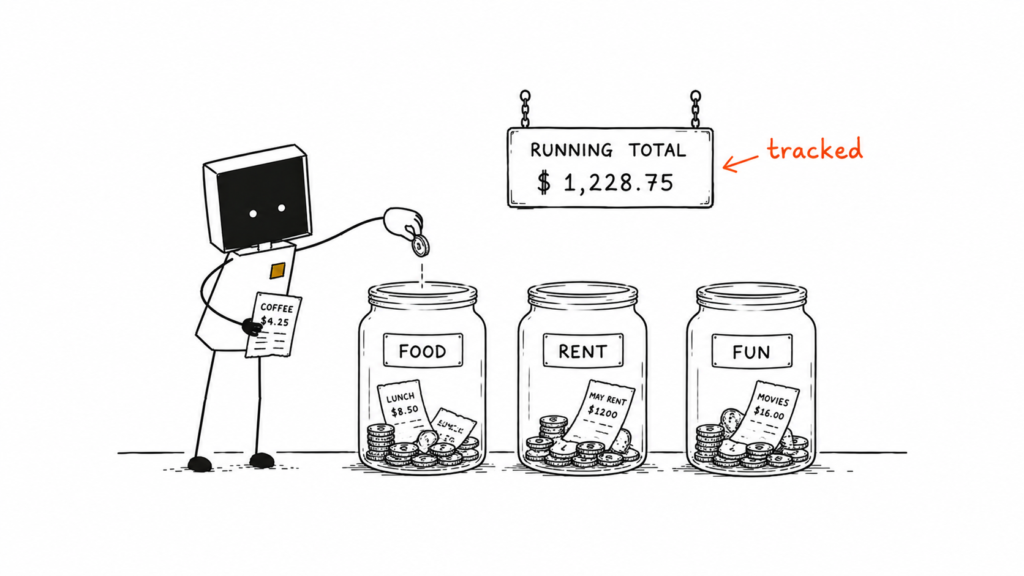
Managing personal finances is a skill and building your own tool to do it? That’s empowering. In this tutorial, I’ll walk you through how to create a command-line based Expense Tracker in Python that stores and analyzes expenses using a CSV file.
This project is part of my hands-on learning journey to grow more confident in Python and command-line tools. It’s beginner-friendly, practical, and something you can actually use or expand into a larger app.
Prerequisites
- Python 3.x installed
- Basic knowledge of Python syntax
- Command Line (Terminal or CMD)
- A text editor (e.g., VS Code)
Project Setup
Open your terminal and run:
bashCopyEditmkdir expense_tracker
cd expense_tracker
touch tracker.py expenses.csv README.md
Inside expenses.csv, paste:
csvCopyEdit Date,Category,Description,Amount
This will act as your database.
Step-by-Step Breakdown
1. Add New Expense Entries
We start by writing a function to add user input to the CSV:
pythonCopyEditfrom datetime import datetime
import csv
def add_expense():
date = input("Enter date (YYYY-MM-DD) or press Enter for today: ") or datetime.today().strftime('%Y-%m-%d')
category = input("Enter category (e.g., Food, Transport): ")
description = input("Enter description: ")
amount = input("Enter amount: ")
with open("expenses.csv", "a", newline="") as file:
writer = csv.writer(file)
writer.writerow([date, category, description, amount])
print("✅ Expense added.")
2. View All Expenses
pythonCopyEditdef view_expenses():
with open("expenses.csv", "r") as file:
reader = csv.reader(file)
next(reader)
for row in reader:
print(row)
3. Calculate Total Spending
pythonCopyEditdef total_spent():
total = 0
with open("expenses.csv", "r") as file:
reader = csv.reader(file)
next(reader)
for row in reader:
total += float(row[3])
print(f"Total spent: ${total:.2f}")
4. Filter by Category
pythonCopyEditdef filter_by_category(category):
with open("expenses.csv", "r") as file:
reader = csv.reader(file)
next(reader)
for row in reader:
if row[1].lower() == category.lower():
print(row)
5. Use CLI Arguments to Trigger Actions
pythonCopyEditimport sys
if __name__ == "__main__":
if len(sys.argv) < 2:
print("Usage: python tracker.py [add | view | total | filter <category>]")
elif sys.argv[1] == "add":
add_expense()
elif sys.argv[1] == "view":
view_expenses()
elif sys.argv[1] == "total":
total_spent()
elif sys.argv[1] == "filter" and len(sys.argv) == 3:
filter_by_category(sys.argv[2])
else:
print("Invalid command.")
6. Run It Like a Pro
bashCopyEditpython tracker.py add
python tracker.py view
python tracker.py total
python tracker.py filter Food
📦 Stretch Goals
- Sort by amount or date
- Export results to new CSV
- Use
argparsefor better CLI experience - Add visual summary using
matplotliborpandas
GitHub Repo
You can view the full project and code here:
👉 GitHub Link to Your Repository
Final Thoughts
This project is a great way to get comfortable using Python in a practical way. You’ll understand how to work with real data, write clean code, and build useful tools—skills that form the backbone of software development.